To give you a comprehensive understanding of how ZIP codes are used in Scope, this article covers the module “ZIP Zone Schema” and provides an specific overview of how ZIP codes are used in the “Rate Imports” and “Tariffs” modules, as well as how they are applied to shipments and quotations.
The following sections, which build on one another, are covered:
-
Creating a ZIP Zone Schema
-
Creating ZIP Zones within a Schema
-
Applying ZIP Zones to Tariffs
-
Rate Import using ZIP Zones
-
Important details to ensure that the tariff will be applied
-
How to create a ZIP Zone Schema or tariff for your own selling rates
1. Creating a ZIP Zone Schema
Master Data > Finance > ZIP Zone Schema
The “ZIP Zone Schema” module displays an overview of all existing ZIP Zone Schemas.
Click “New” at the top to create a new schema.
I you get the error message "A schema for partner XYZ already exist" please have a look here how to solve it: Why does Scope state that a ZIP Zone Schema is already existing, but there is none visible in the overview?
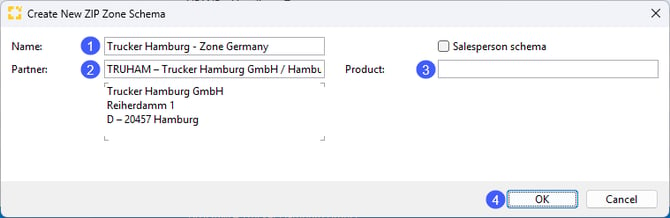
-
Give the new ZIP Zone Schema a name.
-
Enter the partner to which the ZIP Zone Schema should apply.
-
If the ZIP Zone Schema should only apply to a specific product of the partner, enter the product here. Otherwise, leave the field blank.
-
Confirm your entries by clicking OK.
2. Creating ZIP Zones within a Schema
In the dialog that follows, the individual ZIP zones can be created
To add a new ZIP zone, click “New” below the list of ZIP zones and follow the steps below.
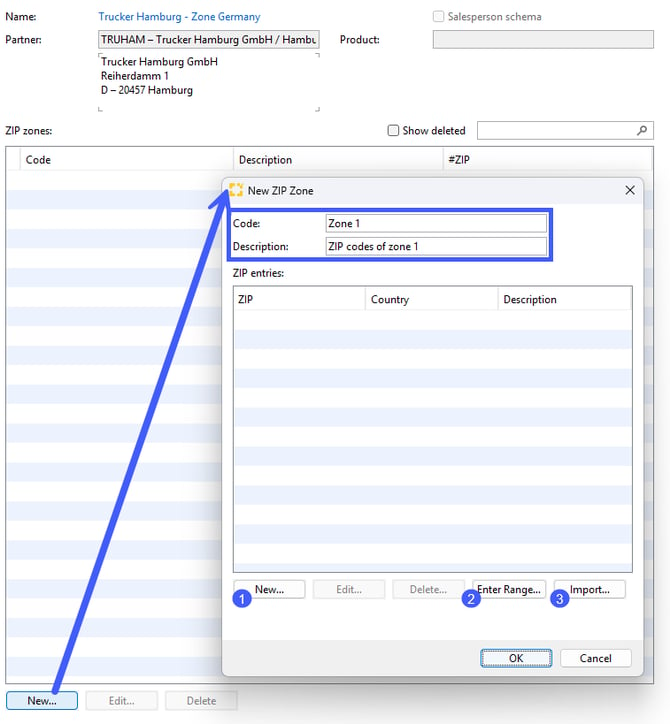
Enter a unique code for the zone in the upper section and provide a clear explanation of the code in the “Description” field.
There are three ways to add ZIP codes to the zone:
-
Click “New” to add an individual ZIP code and enter a description.
-
Click “Enter Range” to add a sequence of ZIP codes by entering the first and last ZIP code in the desired range. Scope will automatically generate all ZIP codes within the specified range.
-
Click “Import...” to import any ZIP codes by choice from an Excel spreadsheet. You can find an example file for importing ZIP codes here: ZIP zone example.
The following screenshot shows an example of ZIP zones for the fictional road carrier “Trucker Hamburg GmbH”. It has nine zones, each containing all ZIP zones that begin with the corresponding zone number.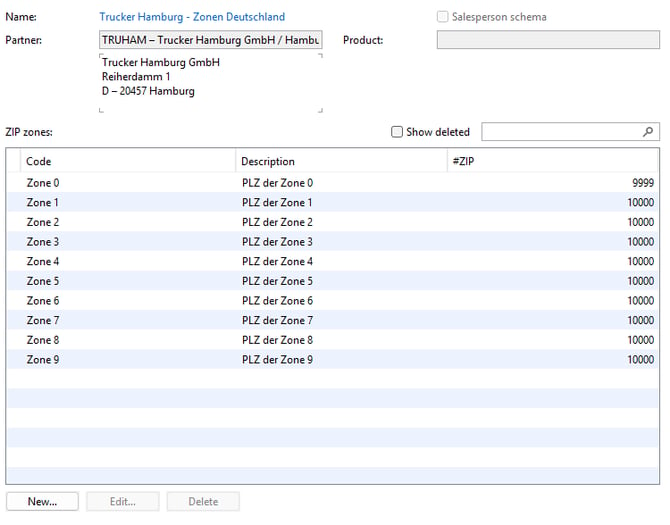
Country specific ZIP zone logic outside of Germany:
Netherlands: ZIP codes are based on the numeric region/city and neighborhood/village/district code.
United Kingdom: Zip codes are based on the Outward Code
3. Applying ZIP Zones to Tariffs
Master Data > Finance > Tariffs
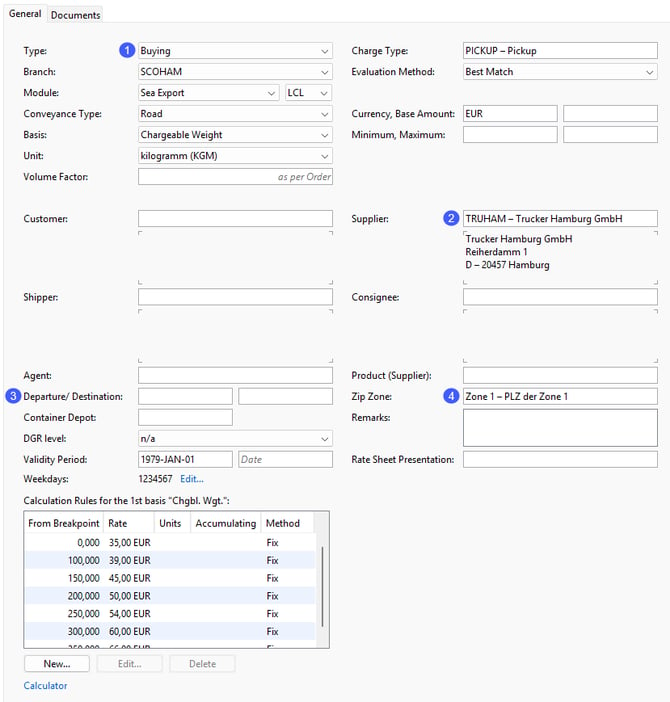
The following example shows a buying tariff that uses ZIP zones. The key points to note are:
-
Type: Buying (ZIP zones can also be used in a selling tariff, see further down below in the article for more information).
-
Supplier: Select the road carrier for which you previously created the ZIP Zone Schema. This allows you to use the configured ZIP zones.
-
Departure and destination: Leave these fields blank when using ZIP codes, as the tariff determines whether it applies based on the ZIP code.
-
ZIP Zone: During job costing, this tariff will be considered for all shipments picked up from a ZIP zone within the range defined for “Zone 1”.
4. Rate Import using ZIP Zones
Master Data > Finance > Rate Imports
To make tariff creation considerably easier, you can import tariffs into Scope instead of entering them manually. Based on the previous example of ZIP zones for the carrier TRUHAM, the following sample file contains the buying rates by ZIP code and weight.
Sample file: TRUHAM pre-carriage germany tariff
For more information about rate imports, see the following article, particularly the section “Courier Tariffs”: How can I import Tariffs and e-Rates?
5. Important details to ensure that the tariff will be applied.
Once a tariff with a ZIP zone has been created or imported, it can be used in quotations and shipments. Kindly note the following two sections below.
Please note the following details in a quotation:
-
The sender or recipient in the quotation must have a ZIP code that is included in the ZIP Zone Schema of the relevant road carrier.
-
The quotation’s scope of shipment must include Pickup or Delivery.
-
If you add a charge line, you must select Pickup or Delivery as the charge type.
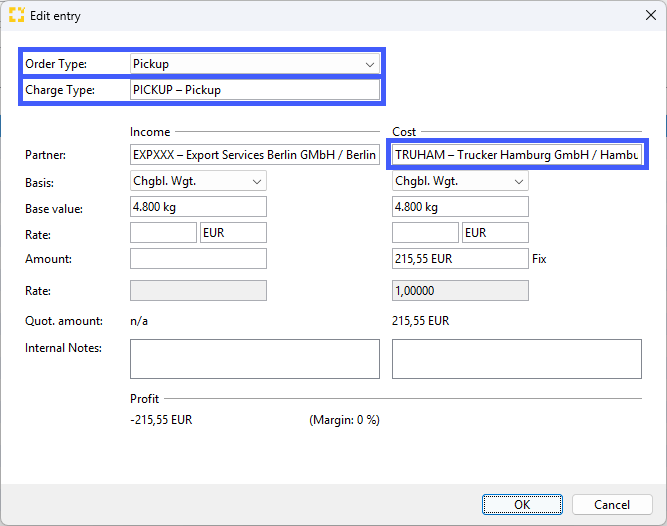
The following example shows a sea freight LCL export quotation whose scope of shipment includes Pickup and for which TRUHAM is specified as the carrier responsible for the pickup. Alternatively, you can manually select the business partner TRUHAM on the cost side. You must also select the appropriate charge type so that the amount of EUR 215.55 is calculated automatically.
Please note the following details in a shipment:
-
Because ZIP codes are applied to transport orders, a transport order must have been created for the shipment for which an estimate or invoice is to be generated. The start or destination address must have a ZIP code that is included in the ZIP Zone Schema of the relevant road carrier.
Depending on the type of transport order, the adress used for the calculation differs
Transport order type
Relevant adress
(FCL-)Pickup Order
Departure
Delivery to Terminal
Destination
Pickup from Terminal
Departure
Delivery to Branch
Destination
FCL-Delivery Order
Destination
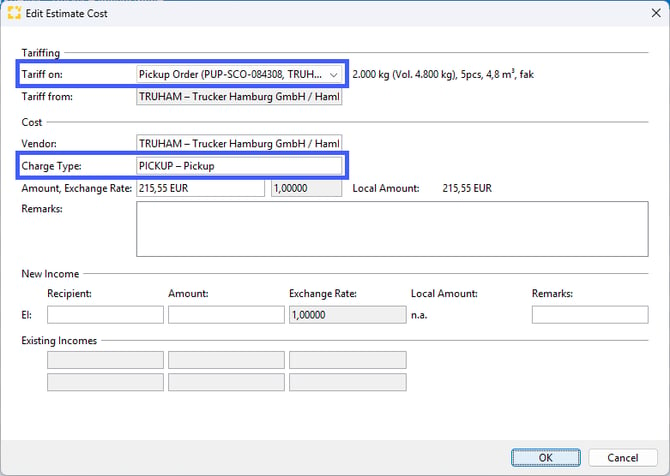
- When you are adding a charge line, you have to make sure to select the correct transport order for tariffing.
The following example shows a sea freight export shipment with an existing transport pickup order assigned to the road carrier TRUHAM. The tariff must therefore be applied to the Pickup order and the charge type matching the tariff must be selected so that the amount of EUR 215.55 is calculated automatically.
If the tariff is not found, click the “Show tariffs (F7)” option in the Amount field. For more information, see the following article: How can I find out why Scope is not applying the tariff I created?
6. How to create a ZIP Zone Schema or tariff for your own selling rates
You would like to use not only the buying tariffs of the road carriers you work with in Scope, but also maintain your own selling rates based on ZIP codes in Scope?
If you want to use a ZIP Zone Schema that you have defined for your own selling rates, create a new ZIP Zone Schema and assign your own branch as the partner. Because ZIP Zone Schemas are branch-specific, you need one schema per branch. Create the schema and define its ZIP zones as described above. Your branch-specific ZIP Zone Schema is independent of the schemas maintained for your road carriers. You can assign only one schema to each branch/partner. If you need multiple schemas, differentiate them by using a product.
If you want your selling price to be based on the purchase price from your road carrier, using the carrier’s ZIP Zone Schema already configured in Scope, simply create a new tariff as shown in the following example.
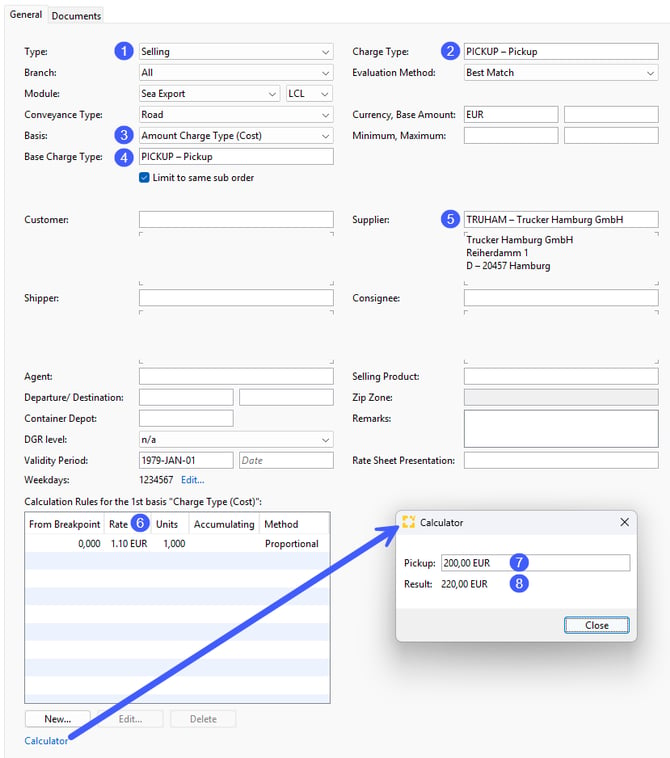
The selling tariff (1) for the PICKUP charge type (2) shall be based on the purchase price (3) of the PICKUP charge type (4) charged by the road carrier TRUHAM (5) and include a 10% markup (6) (that is a rate of EUR 1.10 for every 1 Unit = EUR 1.00). If Scope calculates a buying price of EUR 200.00 (7) in a quotation or shipment based on the ZIP Zone Schema configured for TRUHAM and the imported rates, the tariff shown in the screenshot results in a selling price of EUR 220.00 (8).