General
Whitelist in Denied Party Screening
Feature improves the existing ‘Good Guy’ feature mechanic with a smarter process. Major advantages over ‘Good Guy’ are continued automated checking of whitelisted addresses and no need to manually re-check the same address with the same match result after some days. Re-checking is limited to changes in address or changes with matches on denied party lists.
-
To whitelist an address, Scope requires a full address check result, which is stored with all matches beyond the threshold, including their similarity.
-
Scope checks whitelisted addresses continuously in detail (matching entries plus similarity). Continuously in the sense that the Denied Party Screening is configured to work (Automatic or Manual).
-
If Scope detects a deviation from a denied party screening detail check to the stored result, the address is removed from the white list, enforcing a manual check. This might happen when compliance lists got updated and some of the matches beyond the threshold changed.
-
If the address is changed in Scope, the address is removed from the white list - same as for a Good Guy setting.
-
When a user whitelists an address, a log entry with timestamp is added to Monitoring > Denied party Screening Events in the category WHITELIST.
An address can only be whitelisted or flagged as GoodGuy, not both. Reset removes either the address from the whitelist or the GoodGuy until date.
The whitelist feature requires a new permission ‘Denied Party Screening: Whitelist’. The permission for the GoodGuy functionality is ‘Denied Party Screening: Overrule by setting the good guy until date’.
The two strategies compared: https://service.riege.com/en/knowledge/what-are-the-differences-between-denied-party-screening-exception-options-good-guy-and-whitelistAir
Apply DTT creation settings also to master shipments
Apply DTT creation settings also to master shipments. Default to create or not create a Deliver-to-Terminal (DTT) transport order is configurable in partner settings, role agent:
Go to Master Data > Partner ... Roles tab...Agent role > Airfreight tab
This setting got enhanced to apply also to master shipments.
Delivery timeframe on Pickup transport orders
Fixed default for delivery timeframe on Pickup transport orders.
Scope now uses a better default for delivery timeframe of pickup orders and also applies opening hours when configured in for the applicable partner.
Airfreight Booking Portal
Default stackable/non-stackable field for airfreight booking portal query properly from the stackable fields on quotation, booking or shipment package details.
Airline Messaging Premium
Airline Messaging Premium feature. Subscription is possible for air export and air import tracking. Find out more: https://service.riege.com/en/knowledge/reliable-automatic-tracking-for-air-freight-main-carriage
Ocean
Transport Order
Partner Contacts can be marked as transport order receiver:
Go to Master Data > Partner ... Contacts tab ...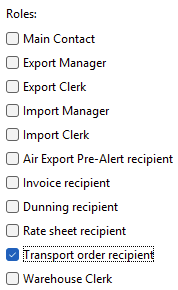
If you added several contacts/emails that way, you can now select which ones should get the documents and attachments for the transport order.
Email receivers on the transport order can be (un-)selected, added, removed: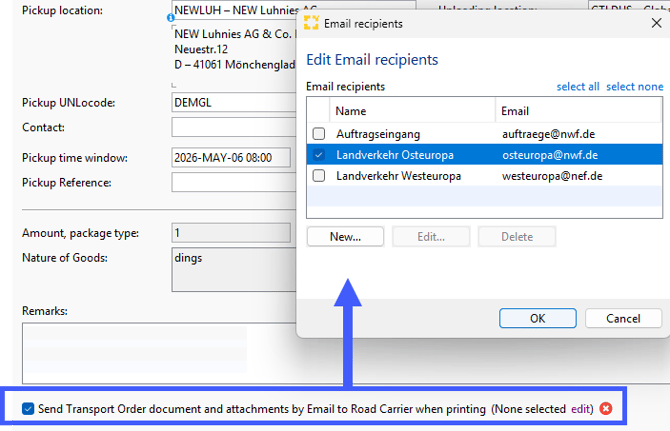
Warning, if no email has been selected: 
Transport Order / Sea Import
We have introduced a new transport order type “Delivery to branch” to give users the choice to handle the first part of the haulage from the CFS (= default pickup address) to the freight forwarders warehouse (= default delivery address) without triggering wrong events for final cargo delivery.
Seafreight
Weights on all (softcoded-)BL documents will always be printed with three decimals (e.g. metric: 5630,000 kg / imperial: 5630.000 kg)
Sea Export FCL / Transport Order
We have introduced an option within pickup transport order FCL to print an alternative text for a combined packing order to the haulage operator which is the container packing operator at the same time.
Finance
Accounts Payable Import
Various improvements have been made to the AP Import appliance.
Invoices intended for processing in an external system must be marked as Not for Scope using the context action Process externally in the AP Import editor. This action is now also available on the AP Import overview, allowing users to download invoices and update the status of multiple invoices at once.
AP Import entries intended for processing in an external system, or where this classification is still pending, previously required a dedicated permission to be visible. To improve transparency and usability, all users with access to the AP Import overview can now see all entries.
Depending on the entry status and the user’s permissions, some information may be restricted. Entries for which a user lacks permission are displayed on overview in a greyed‑out state; sensitive information is hidden, and these entries cannot be opened, downloaded or deleted.
The AP Import overview now includes a preview area that shows selected invoice details, provided the user has permission to view all invoice details.
Invoice attachments associated with an AP Import entry are now assigned a specific MIME type, making them easier to identify as invoice-related files.
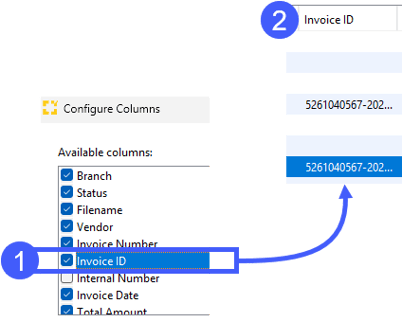
The AP Import overview now shows the tax authority invoice ID for invoices received via the KSeF integration with the Polish tax authority.