
Already existing templates for Accounts Payable Imports can be accessed under
Master Data > Finance > Accounts Payable Import Templates.
If you want to create a new template, you can do so from the top menu bar by clicking “New”.
A better option, however, is to do this directly while editing an accounts payable document in the Accounts Payable Imports module (Finance > Accounts Payable Imports). This allows Scope to prefill some of the template fields with the details already from the accounts payable document.
Make sure the vendor, order number, and charge types have been assigned in the imported document. Then click <no template> and select “Create new template”.
If you already have a template, click the template name in the same place and then select “Update linked template”.
Creating a new template
Tab: General
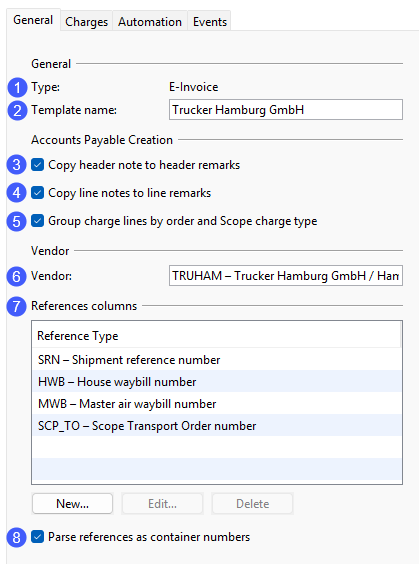
General
1. Scope differentiates between an E-Invoice and a XLS-/CSV file.
2. This is prefilled by Scope with the vendor name by default, but can also be customized individually.
Accounts Payable Creation
3. If a general note is present on the imported document, it is transferred to the general remarks field of the accounts payable document.
4. If notes for individual charge lines are present on the imported document, they are transferred to the remarks field of the individual accounts payable charge line.
5. If the imported document refers to multiple shipments and/or contains multiple charge types, Scope sorts and groups them in the accounts payable document by shipment and charge type.
Vendor
6. Is prefilled with the vendor from the imported document.
Reference columns
7. By default, Scope selects the reference types SRN, HWB, MWB, and SCP_TO. Based on these references, Scope attempts to assign the reference provided in the imported document to a shipment in Scope. If you want to add additional references to the list, edit existing ones, or delete them, please use the buttons below the table.
8. Select this checkbox if you want Scope to also use container numbers from a shipment’s Goods tab to assign the imported document to a shipment.
Tab: Charges
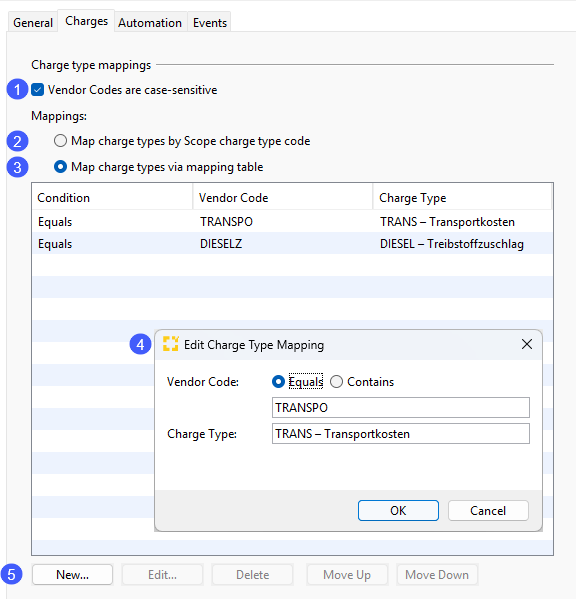
Charge type mappings
1. Decide if case sensitivity for the vendor code shall have an effect or not.
Mappings
2. If the imported document uses the same charge type codes as you do in Scope select this option.
3. Recommended: Select this option so Scope uses the setup from the table below to map the charge types.
4. Double-click a row in the table to open the charge type mapping and make changes. Please note that you can choose whether the vendor code “TRANSPO” only needs to be contained within the vendor code or must exactly equal your entry.
5. If you want to add more mappings to the list, edit existing ones as described in the previous step, delete them, or change their order, please use the corresponding buttons.
Tab: Automation
If a vendor, one or more shipments, and one or more charge types can be assigned automatically to the imported document, the document can be processed automatically. The following settings are available to control this automation.
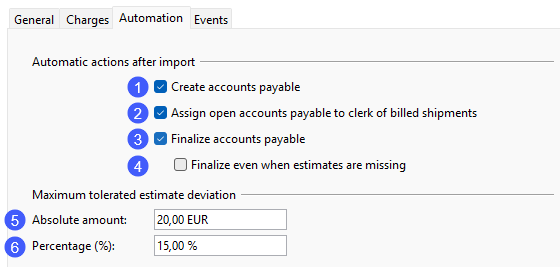
Automatic actions after import
1. After successful assignment, the imported document is converted into an accounts payable document.
2. The clerk responsible for the shipment, linked to the accounts payable document, receives a notification if the document could not be finished automatically.
3. The accounts payable document is finished automatically if condition 5 and/or 6 is met.
4. The accounts payable document is finished in every case, regardless of whether estimates exist or not.
Maximum tolerated estimate deviation
5. Enter the maximum permitted absolute deviation of the amount in relation to the estimate.
6. Enter the maximum permitted percentage deviation of the amount in relation to the estimate.
If values are entered for both options, both maximum deviations must be met separately for the accounts payable document to be finished automatically.
Defaults for Accounts Payable Import Templates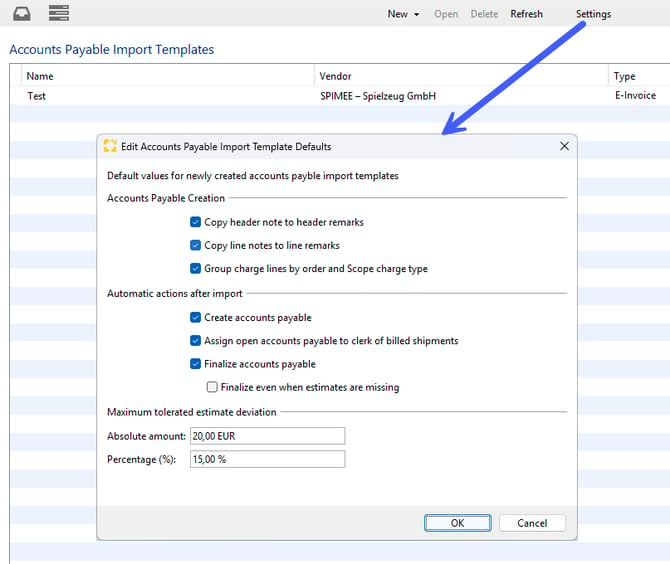
You can define default settings for accounts payable import templates under Master Data > Finance > Accounts Payable Import Templates by selecting “Settings” from the menu bar.
These settings are then prefilled automatically when you create a new accounts payable import template, which can significantly speeds up the creation process. If you do not define any default settings, each new template must be completed manually in full.
Using permissions, you can configure Scope so that users can create accounts payable import templates independently, while still preventing them from deviating from the predefined default settings for “Automatic actions after import” and “Maximum tolerated estimate deviation”.