Background
Effective February 1st, 2026, Poland requires all B2B transactions to be invoiced using a structured electronic format, the FA (3) e-invoice format. These e-invoices must be transmitted to a central platform called the National Electronic Invoice System - KSeF. All VAT taxpayers with a seat or a fixed establishment in Poland will have to issue electronic invoices.
The implementation is staged:
-
February 1st, 2026: For large taxpayers (over PLN 200 million turnover per year)
-
April 1st, 2026: For all taxpayers
While issuing is staged, every taxpayer must be able to receive invoices via the KSeF-Portal from February 1st.
What steps should be taken?
To enable the Scope connection to KSeF portal for your organization, please reach out to the Riege Service Team to request a quote for this integration.
What will happen when I ordered Scope E-Invoice connection to KSeF?
Upon ordering the Scope connection to the KSeF portal, Riege Software will coordinate the setup for your organization.
Customers have to provide their KSeF certificate, which can be generated in the KSeF portal.
What do you need to do for incoming invoices?
Once the KSeF interface has been set up by Riege Software, all incoming invoices will be automatically retrieved and made available in the appliance Accounts Payable Import (AP Import).
However, some invoices - typically administrative cost invoices - should not be booked in Scope and instead belong in an external system, such as an accounting system. In addition, these external invoices often should not be visible to all Scope clerks. Please check: How to handle E-Invoices that should not be processed in Scope?
The core functions of the Accounts Payable Import appliance - automated matching and booking of incoming invoices using Accounts Payable Import Templates - are also fully supported within the KSeF integration.
What do you need to do for outgoing invoices?
When issuing outgoing invoices, the status will temporarily appear as “Finish pending” until confirmation is received from the KSeF portal. During this time, the invoice PDF is not yet available in Scope.
See also: What to do if an outgoing invoice has status “Finish Rejected”
Correcting Invoices Sent to KSeF
Invoices submitted to KSeF can be corrected by issuing either a credit note or a related invoice. A correction invoice does not replace or substitute the original invoice; instead, it is used to adjust the original invoice amount, either by decreasing or increasing it.
-
Open the invoice that needs to be corrected
-
Click on the “Create Correction” button in the top bar
-
Select one of the following options:
-
Create Credit Note – use this option to reduce the amount of the original invoice. By default, all charge lines from the original invoice are copied into the correction credit note, making it easy to fully reverse the invoice if required.
-
Create Related Invoice – use this option to increase the amount of the original invoice.
-
The Cancel action is no longer available for correcting invoices that must be submitted to KSeF. You need to create a correction credit note to balance the original invoice instead.
Additional Information for Correction Invoices
Correction invoices submitted to KSeF may include additional details, such as:
-
The KSeF correction method, and
-
A textual description of the correction reason.
To use a specific correction method or provide a correction reason, ensure that at least one Scope reason is configured for the action “Finalize correction invoice or credit note” in the Scope appliance Reasons. Each Scope reason must be linked to a KSeF correction method.
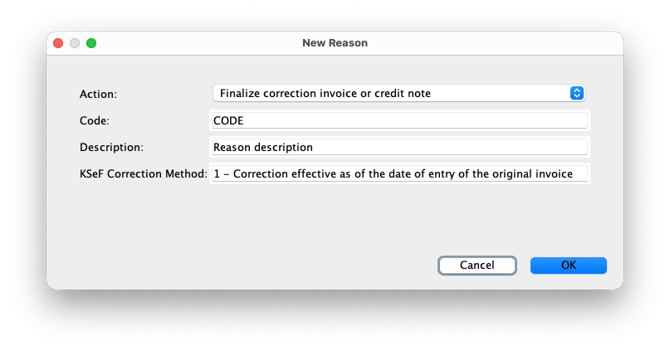
When printing a correction invoice or credit note and reasons are defined in Scope, a dialog will appear where you can:
-
Select one of the predefined reasons, and
-
Optionally add a text description that will be included on the correction document.
If you have no reasons defined, the default correction method is: “3 - Correction effective on a different date, including when the dates are different for different items on the correction invoice” and will be used automatically.
Correcting the Invoice Recipient Address
KSeF allows address corrections without adjusting any monetary amounts. In Scope, this can be handled as follows:
-
Update the invoice recipient address in the master data.
-
Create a correction invoice containing one charge line with a zero amount.
The charge type of this line is irrelevant because it will not be included in the KSeF e-invoice.
What needs to be done before going live with outgoing invoices?
We recommend checking the following items in the test environment:
-
Familiarize yourself with the new workflows, especially those related to correction invoices
-
Approve the tax mapping to the KSeF FA (3) e-invoice format. Invoices successfully registered in the KSeF portal show a ZIP file on the Document tab of the invoice editor, containing a white‑label PDF representation of the FA (3) e‑invoice.
-
Approve changes to the standard (correction) invoice forms, such as the addition of the KSeF QR code. Maybe request further changes to the (correction) invoice forms, particularly if you are using dedicated company specific forms for your invoices.