
Prepare by first making a Route
Before a tour can be created, at least one route must be created. A route allows you to store repeat information to be used in the transport order, and in can describe the geographic location that the truck will deliver the cargo within. In this example, a tour is created for regular air import shipment that are ready for pickup and delivery on Monday morning within the US Tri-State area (New York, New Jersey and Connecticut). A route can be very specific, or, as in this example, very general.
Navigating to Route creation
Master data > Forwarding > Route template
- From the main Scope menu choose Master Data.
- In the Master Data sub-menu choose Forwarding.
- In the Forwarding sub-menu choose Route Templates.
- Creating a new route: The Route Templates will show an overview of any existing routes, select New from the toolbar at the top to make a new one.
Fields and how to fill them
- Name - give the route a name that is as descriptive of its purpose in as few words as possible. In the example, the name is the GTLNYC Warehouse Tri-State Multi-delivery. This tells us it is a route created for the warehouse at the branch GTLNYC and will make multiple deliveries in the Tri-State area.
- Type - for a route that will be used with a "Tour" always choose the type "Warehouse Tour"
- Route Departure - If the tour always picks up the goods from the same location, then this location can be given a name and a partner selected for the location. In this example, the goods are always picked up from the GTLNYC warehouse and so this is used as the name and the partner GTLNYC is used in the partner field
- Route Destination - If the tour always delivers all the goods to the same delivery address, then a name can be given to this delivery address and the partner for the delivery address can be entered. In this example, the goods picked up from the GTLNYC warehouse are delivered all over the Tri-State area, and so the Route Destination details are left blank.
- Airport - If the goods are always picked up or delivered to a specific airport, the pickup or delivery airport can be stored here. It may be left empty
- ETD - This is the estimate of when the tour typically departs, but it can be left blank
- Runtime - This the estimated time for the tour to be completed. It may be left blank
- Cost Center - Here the cost center to which any charges related to the tour must be applied. This field must be completed.
- Road Carrier - When there is a specific trucker who operates this tour, the trucker's partner details can be entered, in addition, if there is a specific Truck and Driver, these details can also be stored. In this example the partner for the branch GTLNYC is used, this will default to the transport order, but can be changed when the transport order is created if a different trucker is going to be used.
Click Save to store the new route.
Creating a Transport Order that has multiple pickup and delivery addresses
In this example, our tour is for air import goods arriving at the GTLNYC warehouse that will then be picked up and delivered in the Tri-State area. Therefore, the air import shipments are created in the normal way.
Creating a Delivery Order for goods on a Tour
Within the air import shipment, create a new delivery order (1) in the normal way, but instead of entering the real trucker in the Carrier field of the delivery order, enter the partner address of the current branch (2). In this example, GTLNYC is the partner for the current branch, and this appears in the Carrier field of the delivery order.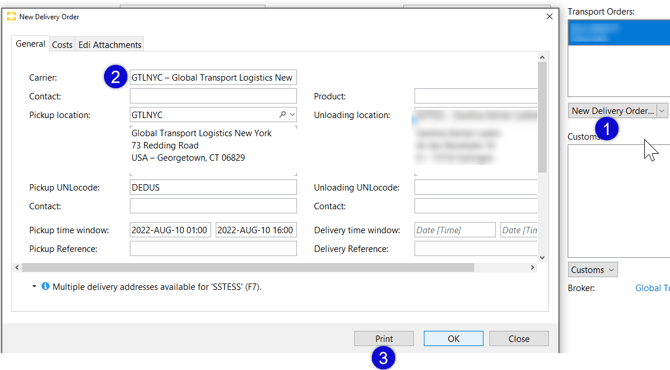
Now press Print (3) on the delivery order.
Create the delivery orders in the same manner for any other shipments that need to be added to the tour.
Completing the Tour and printing the Transport Order
Once all the delivery orders for the tour are printed as described above, open the Truck Disposition.
- From the main Scope menu choose Forwarding.
- From the Forwarding sub-menu choose Truck Disposition.
The Handling Truck Disposition will appear with available cargoes shown in the left window. The Open Routes will appear in the top right window.
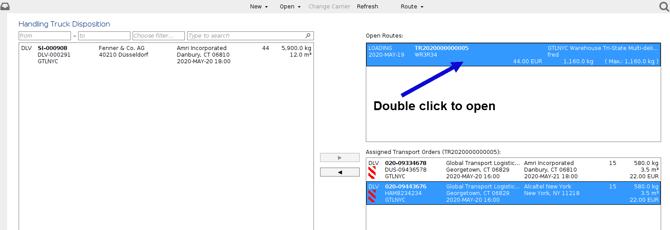
Use the left/right arrows in the center of the screen to add cargoes to the transport order (bottom right window), or to remove them from this window.
Note that a delivery order from a sea import shipment has appeared in the left window, demonstrating that cargo from any shipment type may be added to a transport order
When the desired delivery orders are in the right lower window, double-click the open route above to which they have been applied.
Reviewing and printing the Transport Order
The transport order for the open route that has been clicked will appear. In the top section, the real road carrier can be entered together with any other transport details.
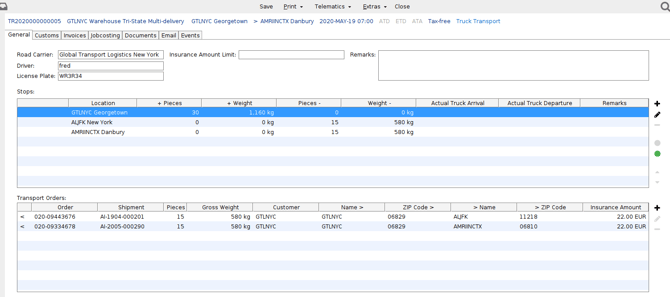
- Stops - The middle section of the transport order shows the first pickup location, followed by the delivery locations in the order that they will be completed. The order can be changed by highlighting any stop and using the up/down arrows to the right to move the item up or down in the list. Double-clicking the item opens it and ETD/ETA, ATA/ATD details can be entered to show the time the truck will arrive and depart for that item.
- Transport Orders - this will display the selected delivery orders or pickup orders. The individual details on these can still be changed by double-clicking, which will open the shipment where the delivery/pickup order was created so that changes to the delivery/pickup order can be made.
When all is ready for the transport order, use the Print option on the toolbar at the top and select the Tour Transport Order.
Print > Tour Transport order