
You would like to continue using multiple different charge types for your internal calculation of costs and income as usual, but offer your customer, for example, the FOB costs as an all-in price?
You can do exactly this either while creating a quotation or later when invoicing your customer in the outgoing invoice.
In the Quotation
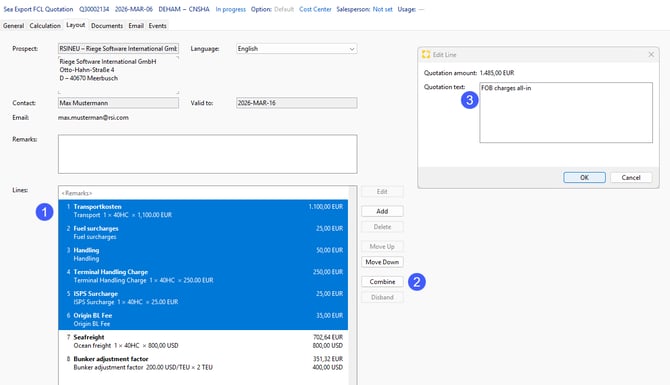
Create your quotation as usual with different charge types and costs/income in the “Calculation” tab. In the “Layout” tab, you can then select multiple charge types (1) that you want to combine, by holding down the Ctrl key on your keyboard. Then click on "Combine" (2). A pop-up window open, where you can assign a new name (3) to the combined charge types, e.g. “FOB charges all-in”.
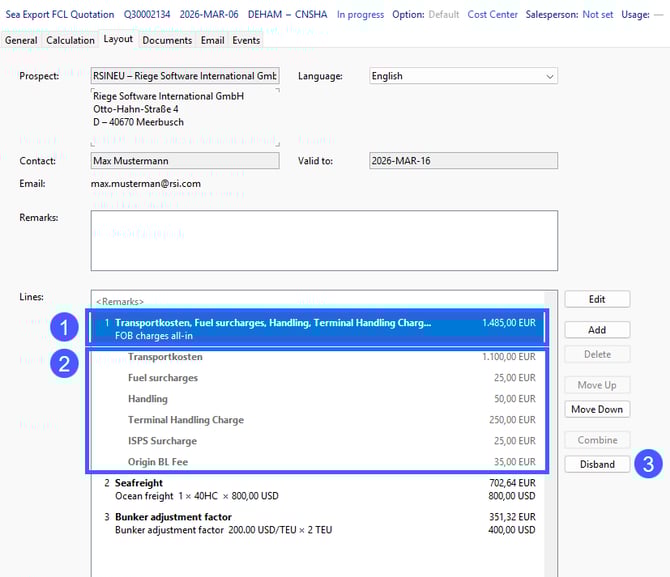
The overview of the quotation lines has now changed, and the newly named line (1) “FOB-charges all-in” represents the total of all greyed out charge types (2).
In your quotation, your customer now only sees three lines: “FOB charges all-in”, sea freight, and bunker adjustment factor.
If you want to undo the consolidation, click the grouped line to highlight it in blue and then click “Disband” (3) to separate it again and restore the previous state.
The consolidation has no effect on the “Calculation”. The overview of the individual charge types with their specific costs/income remains unchanged. Even if you create a shipment from the quotation and adopt the costs and income, the consolidation has no impact on the overview in the “Jobcosting” tab. There you will see all individual charge types from the calculation quotation’s calculation.
If you create a shipment from the quotation and then an outgoing invoice, the combined charges types from the quotation are also transferred and applied to the outgoing invoice.
In an outgoing invoice
In an outgoing invoice, the same buttons “Combine” and “Disband” are available to the right of the Charges. The procedure is the same as described above in the section “In the quotation.”
See the first screenshot: Select the charge types (1) that you want to combine while holding down the Ctrl key, then click the button "Combine" (2). In the pop-up window, enter a name (3) and click OK.
See the second screenshot: The newly named all-in line (1) appears at the top in black text, and the combined lines (2) are greyed out. If you want to undo the consolidation, click on the combined line to highlight it in blue and then click “Disband” (3) to separate it again and restore the previous state.
Combining charges has no effect on the “Jobcosting” tab, the overview of the individual charge types with their specific costs and income remains unchanged.
If you have linked a quotation to your shipment and charge types have already been combined in that quotation, this consolidation is automatically carried over to the outgoing invoice.