
Benefits
The Partner Groups application lets you organize business partners into groups for use in areas such as the shipment overview or the tariff module. This gives you a quick overview of business with those partners without having to open each partner’s record individually.
For example, you can create an “Import” group and assign the relevant business partners to it. When you search by this group during shipment entry, all assigned business partners are displayed.
Usage
Accessing the application and creating groups require the appropriate permissions.
If you don’t see the application in your system, contact your Scope administrator or the Riege Service Team.
You can assign customers to a partner group directly in the Partner Groups module (Master Data > Groups > Partner Groups) or from a business partner’s record—for example, on the Allocations tab when creating a new business partner.
To assign a group from a business partner’s record, the partner group must already exist. If it doesn’t, create the group first, then assign the business partner to it.
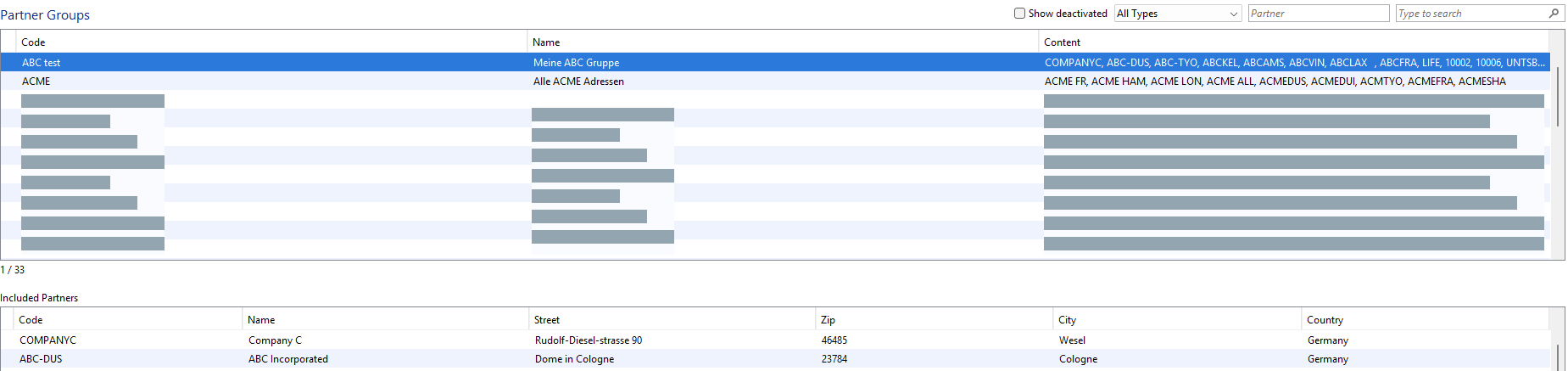
Field and Option Descriptions
Partner
Enter a business partner to display all groups they belong to.
Type to search
Enter a business partner to display all groups they belong to.
Included Partners
Displays the business partners assigned to the selected group.
Option “Show deactivated”
Select this option to display previously deleted groups. You can then restore them.
Selectable options “Usage types”
You can specify which areas a group can be used in: Tariffs, Salesperson Assignments, and Grouped Report.
Restricting a group’s usage keeps Scope organized by showing users only the groups relevant to the module they’re currently using.
Detailed use cases
Filtering and Generating Statistics by Partner GroupSo, how can you actually use these partner groups to filter data and generate statistics?
In the Shipment Overview module, you can use a partner group instead of an individual partner in any partner selection field, for example Shipper, Consignee or Customer. To do this, simply change the selection criteria from “is” to “is part of the group” and select the relevant network or partner group. Once you have applied your filter, click “Show Totals” followed by “Calculate Figures” to display all relevant figures and statistics.
Alternatively, click “Detailed”to export the underlying data into an Excel report.
Using Partner Groups in Tariff MaintenanceIf a partner group has been assigned the usage type “Tariffs” you can also use it directly in the tariff maintenance. For example, when creating a tariff, you can select the relevant partner group in any partner field, such as the “Customer” field shown in this example.
Simply enter the code or name of the partner group and select the correct entry from the list. This allows you to create a single tariff that applies to multiple partners at the same time.
The main advantage is that you only need to maintain one tariff. If changes are required, you don't have to update separate tariffs for every individual partner.