
Requirements
To transmit FWB/FHL data electronically to the airline, Airline Messaging (SKU F10) must be set up.
In Scope, there are two ways to trigger the transmission of FWB/FHL data.
Option 1: Using the “Finish” Function
Open the corresponding Air Export shipment in the Shipment Editor.
Finishing the shipment triggers the electronic transmission of the corresponding
FWB/FHL data to the airline.
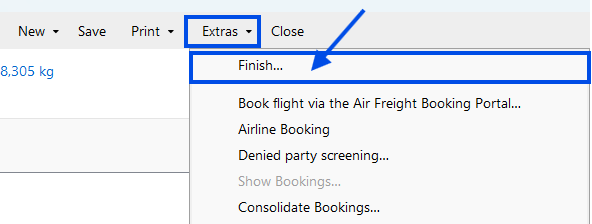
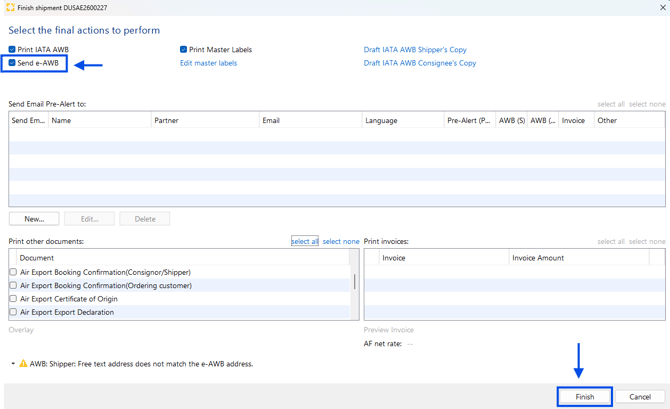
Finishing the shipment triggers the electronic transmission of the corresponding FWB/FHL data to the airline.
Option 2: Using “Transmit e-AWB” in the AWB Editor
Alternatively, the transmission can be triggered directly from the AWB Editor.
- Open the AWB Editor for the corresponding shipment.
- Check the AWB data.
- Click Transmit e-AWB.
This triggers the electronic transmission of the corresponding FWB/FHL data to the airline.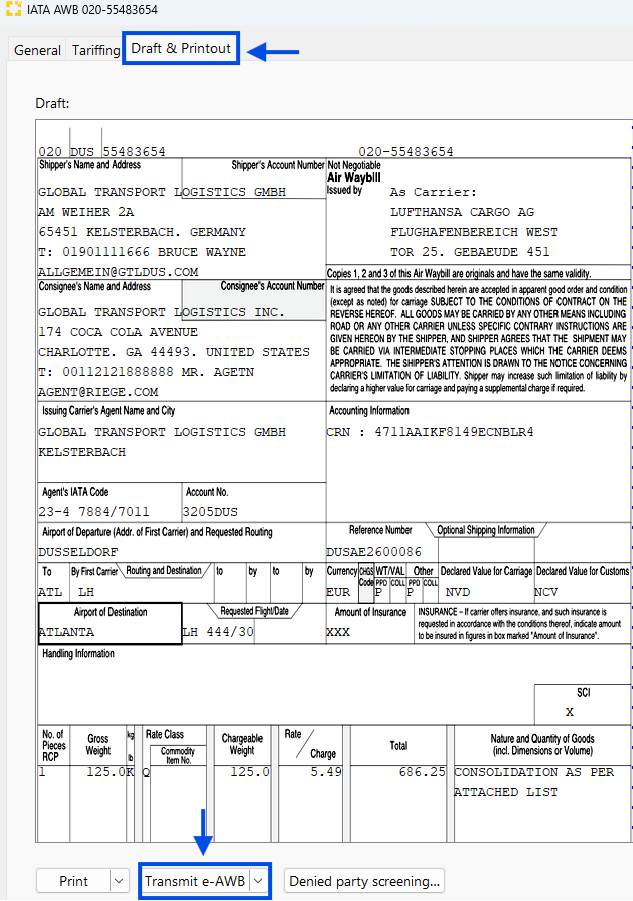
Both options can be used to trigger the electronic transmission of FWB/FHL data:
Shipment Editor:
Extras → Finish
or
AWB Editor:
Transmit e-AWB
If you complete your shipment using the Finish function, the transmission can be triggered as part of this process. If you want to trigger the transmission directly from the AWB Editor, use the Transmit e-AWB function.
Important
Generating or printing the AWB PDF does not automatically transmit the FWB/FHL data to the airline.
The electronic transmission must be triggered using one of the two options described above.