
In order to create a payment file (Finance > Accounts Payable), the following conditions must be met:
- Type: Invoice (Inv)
- Status: Open, Released or Finished
- Final amount: Positive
- Payment method: Bank transfer
- Bank account details are entered in the creditor role of the partner
- A payment reference has been entered (to be defined during incoming invoice entry)
You can now create the payment file under Finance > Accounts Payable by clicking on Generate payment file. You can either generate a single payment file for the entry highlighted in blue, or select multiple entries and generate one payment file for all of them together.

If one or more of the above conditions are not met, a notification will appear in the next dialog window under Validation Errors.
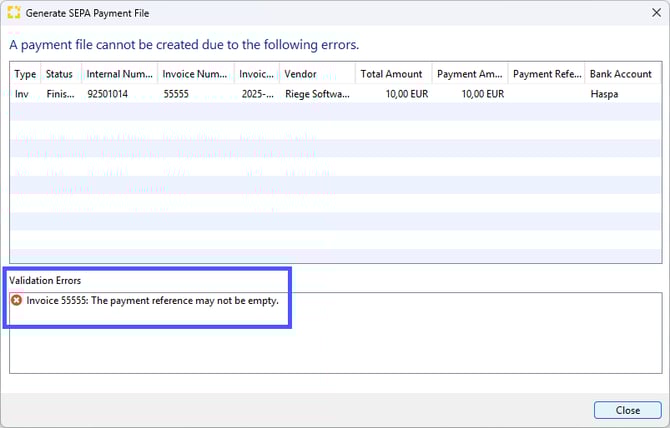
If that's the case, close the dialog window, correct the error, and click Generate payment file again.
If a payment file has already been created for one or more of the selected entries, you can still create an additional payment file. However, you must explicitly confirm this again.
Finally, click OK. The payment file will be created and made available for download.