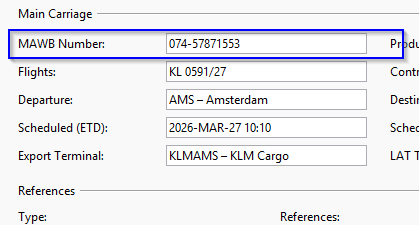
Completing the “Airline Booking” view
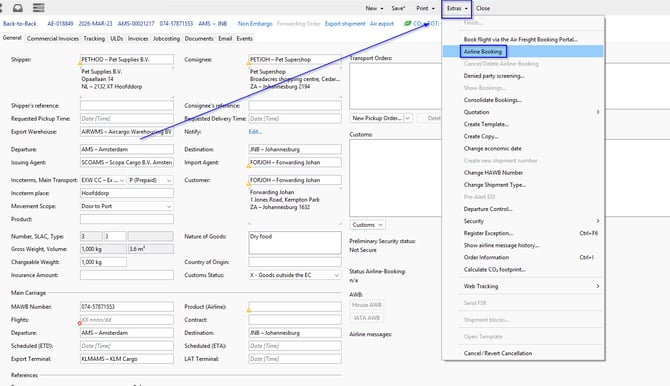
Once you have created and finalized the shipment file, click the “Extras” button at the top of the screen and select “Airline Booking.”
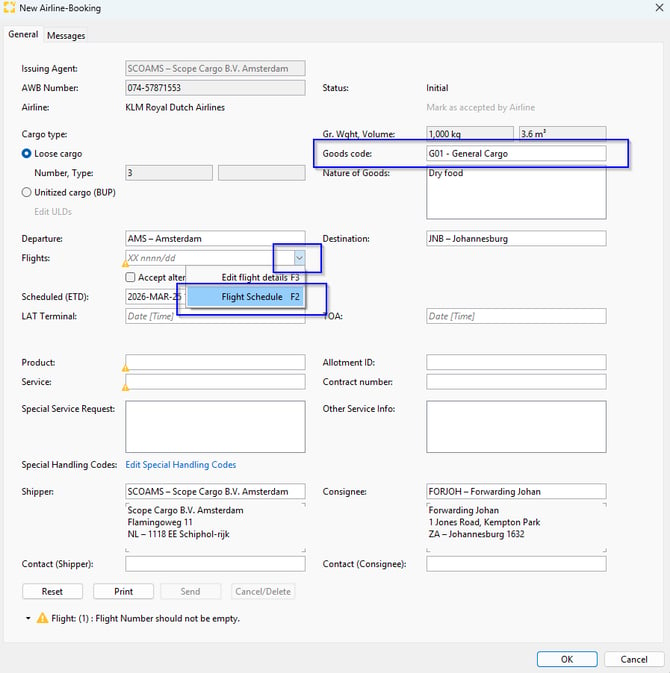
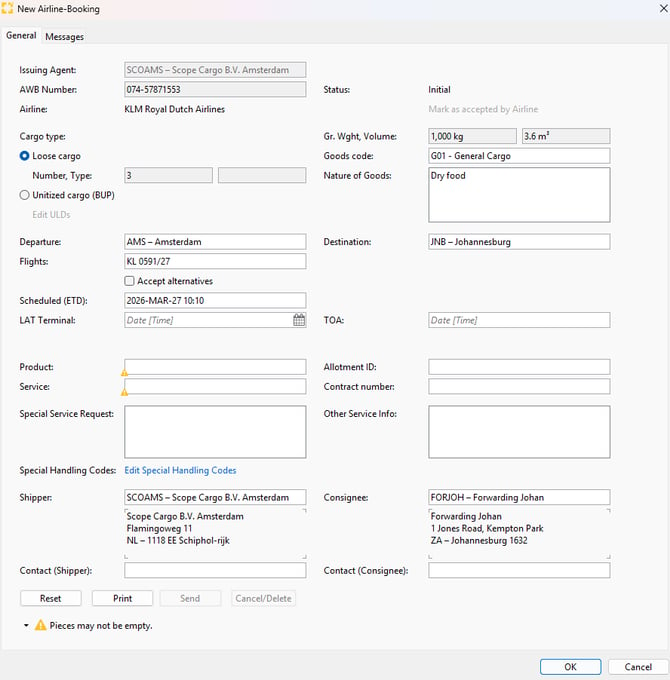
The following screen opens. Enter the “Goods code,” then select the flight you want to book in the “Flights” and “Flight Schedule” fields (or press F2).
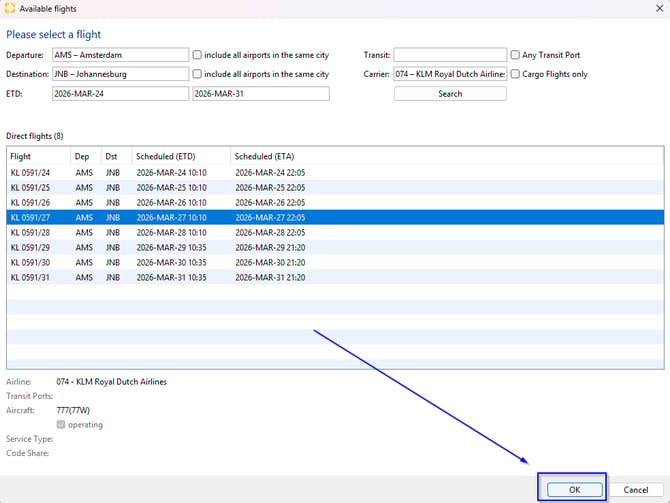
Select the flight you want to request, then either click “OK” or double-click the desired flight to confirm your choice.
If required, you can add further details in the Airline Booking view, such as “Latest Acceptance Time” (LAT), “Product” (to specify the booking type, e.g. Pharma or DGR), “Service” (Standard or Express), shipper and consignee contact details, “Time Of Availability” (TOA), “Allotment ID,” “Contract number” (your contract or reference number with the airline), as well as any additional requests under “Special Service Request” and “Other Service Info.”
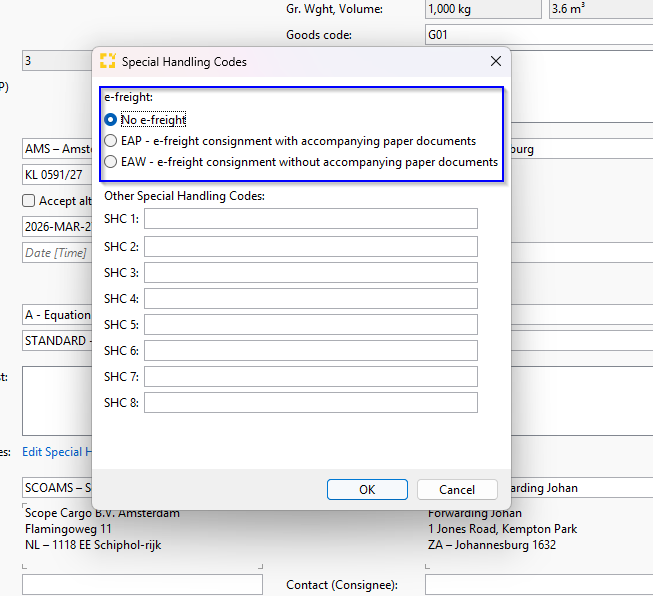
Use the “Edit Special Handling Codes” button to add handling codes and indicate whether you want to use an e-AWB with or without accompanying paper documents.
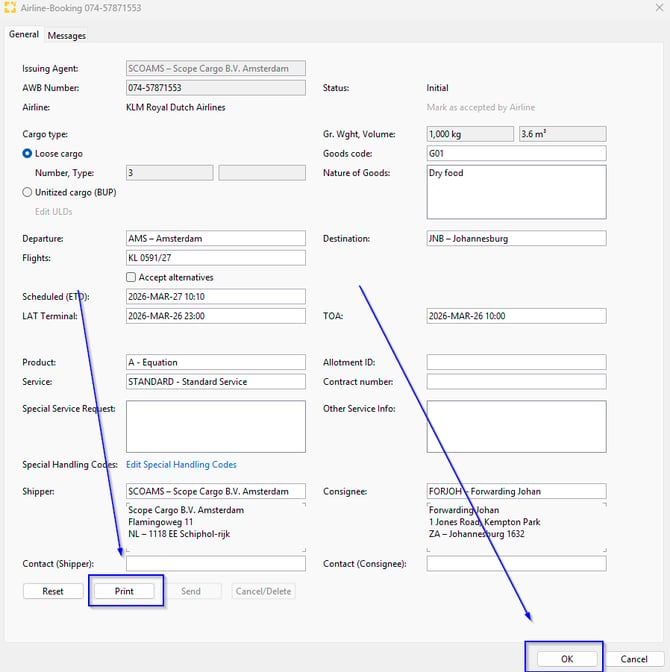
Generate an “Airline Booking” document
Click “OK” to save your changes. Click "Print" you will generate an “Airline Booking” document.
Please note that you still need to enter the flight in the “General” tab of your shipment in the “Flights” field. This is not done automatically, as this function does not book a flight but only generates a document to send to the airline.
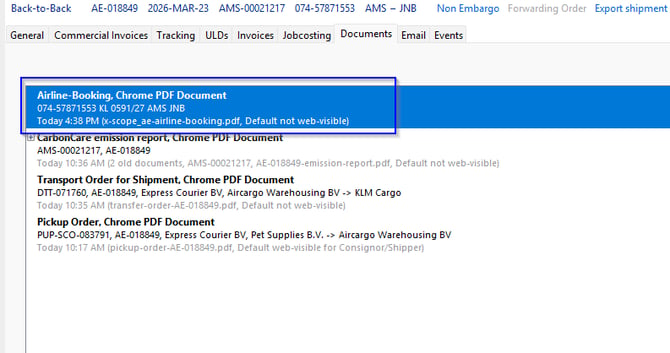
You can find the generated “Airline Booking” document in the “Documents” tab in the shipment to send it to the airline.
How to delete the Airline Booking
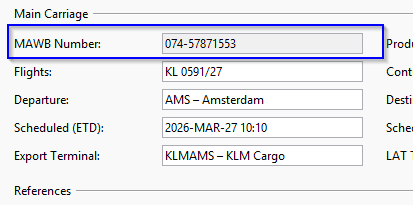
You can see that the AWB is blocked for changes when you create an Airline Booking in the system.
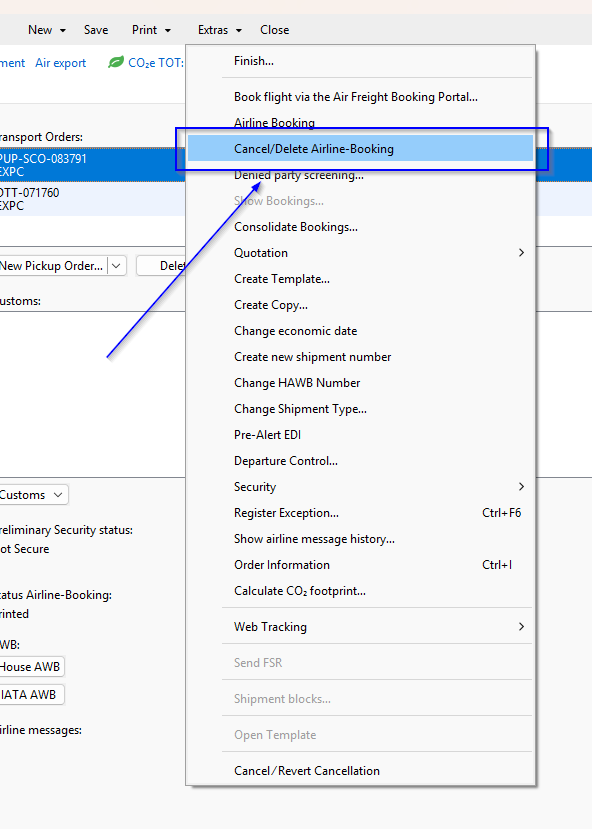
To re-open this field, you will need to Cancel/Delete the Airline Booking first. To do this, you will need to go to “Extras” again, and you will also find the “Cancel/Delete” button.
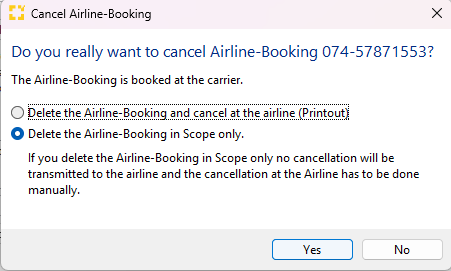
You can choose either “Delete the Airline Booking and cancel at the airline” or “Delete the Airline Booking in Scope only”. Since airlines no longer support booking flights via the Airline Booking function, you only need to select the option to cancel at the airline if you also want to delete the generated printout.
After you have deleted the Airline Booking, the MAWB number field is unlocked and can be edited again.