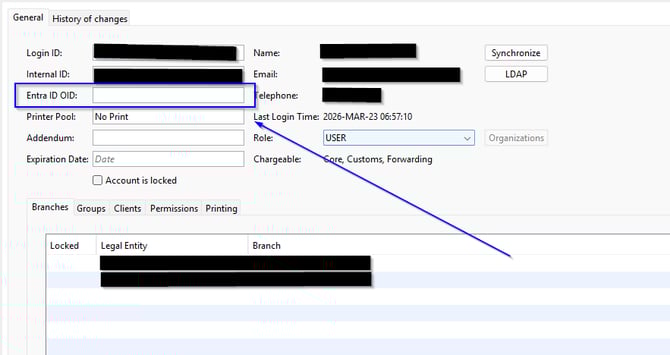
This page describes how to link a new SSO User to a new Scope Account.
After these steps have been taken the new user should be able to start Scope.
Correct setup will skip the Scope login window.
Steps by the new user.
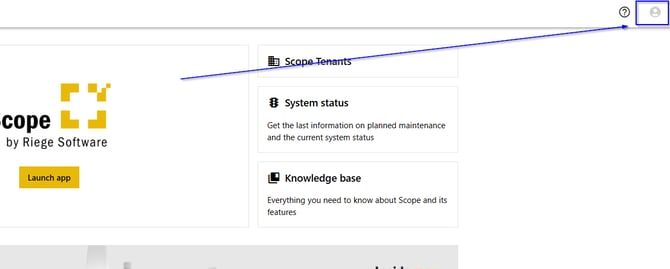
After logging into the Scope portal, the new users clicks the "Profile" button in the upper right corner.
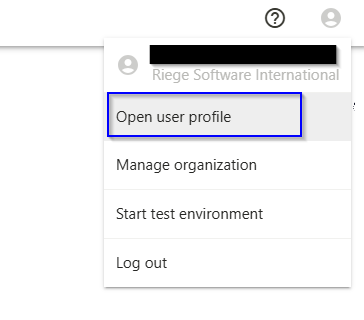
Click on "Open user profile"
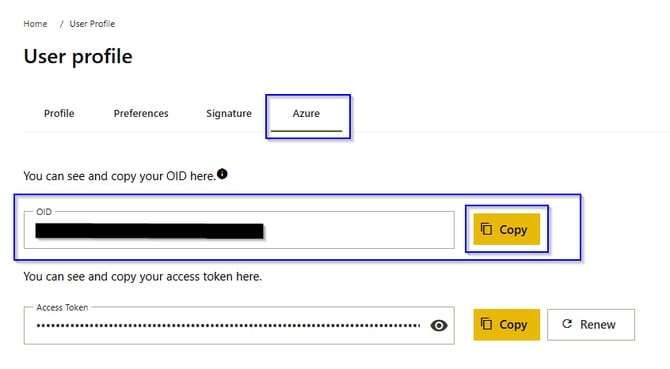
Choose the tab "Azure" and copy the OID and provide this key to your system administrator or Scope Support team.
Steps by the Scope Administrator
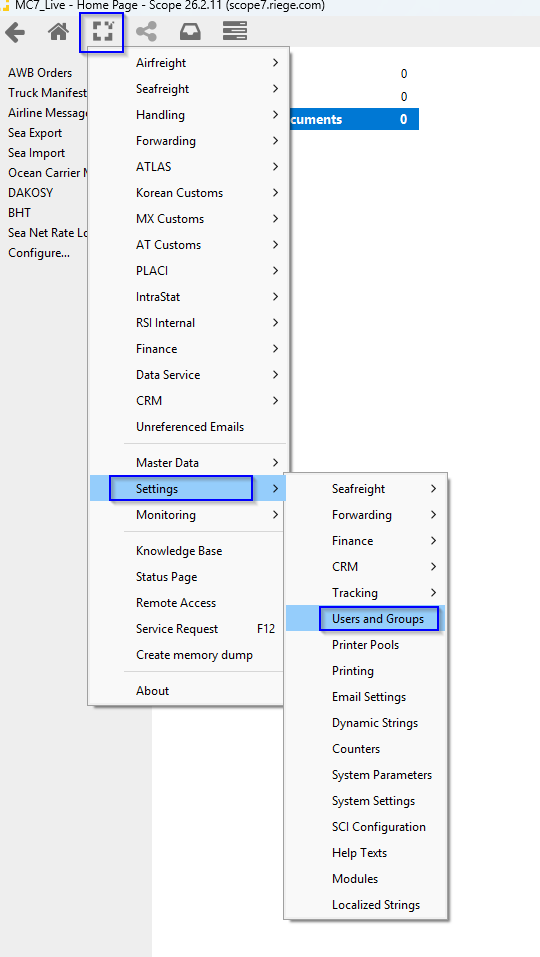
Access Scope, then open the “Scope” menu, go to “Settings,” and click on “Users and Groups.”
Select the user whose OID was copied, open the user settings, paste the OID into the “Entra ID OID” field, and save your changes. Now the new user should be able to click te launch app button and start Scope.