Live or Test/Staging
In case you want to do this setup in the Live environment, log in with your Microsoft Account in the Live Scope portal: https://scope.riege.com/
In case you want to do this setup in the Test environment, log in with your Microsoft Account in the Test/Staging Scope portal: https://scope-staging.riege.com/
as these 2 different environments give different OIDs for the user.
Steps by the new user
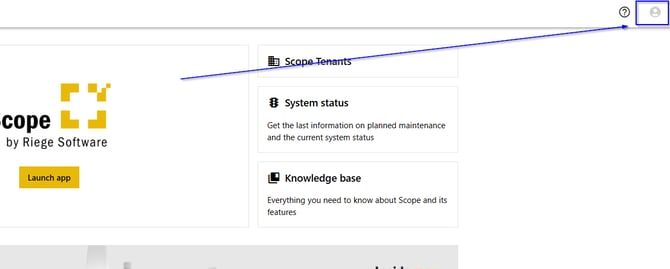
After logging into the Scope portal, the new user clicks the “Profile” button in the upper right corner.
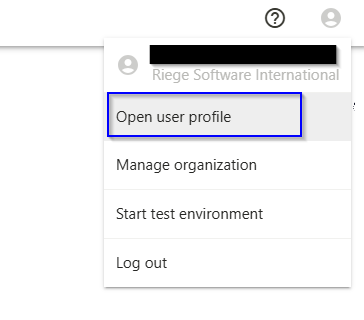
Click on “Open user profile”
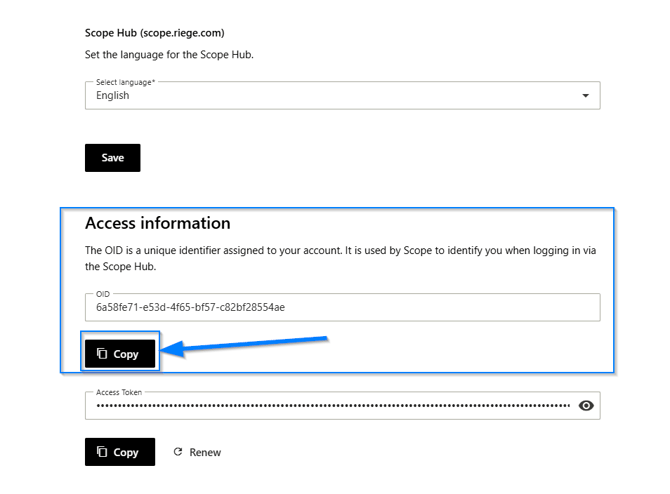
Scroll down the page to the section “Access Information” and copy the OID and provide this key to your system administrator or Scope Support team.
Steps by the Scope Administrator
Live or Test/Staging
As mentioned above, please use the corresponding Scope Environment (Live or Test/Staging) to add the user OID to Scope.
Access Scope, then open the “Scope” menu, go to “Settings,” and click on “Users and Groups.”
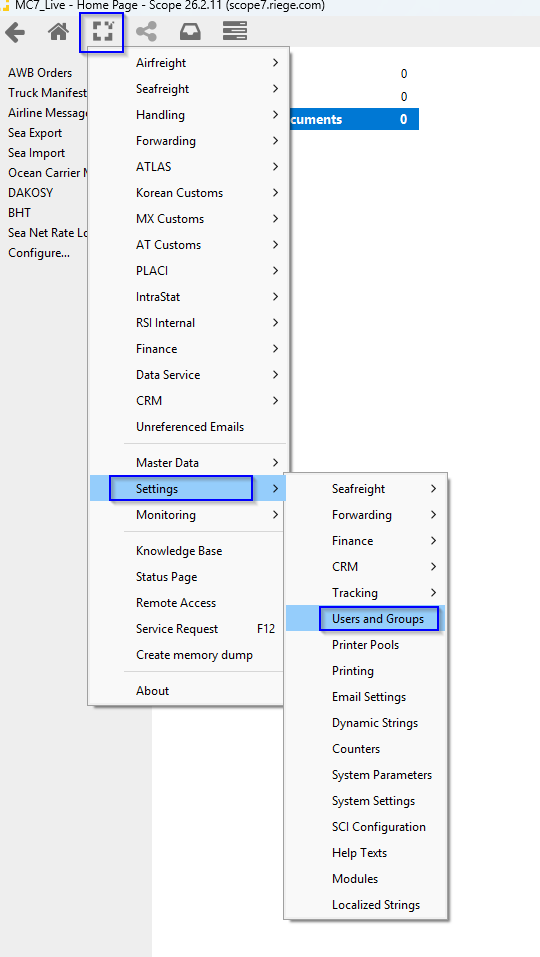
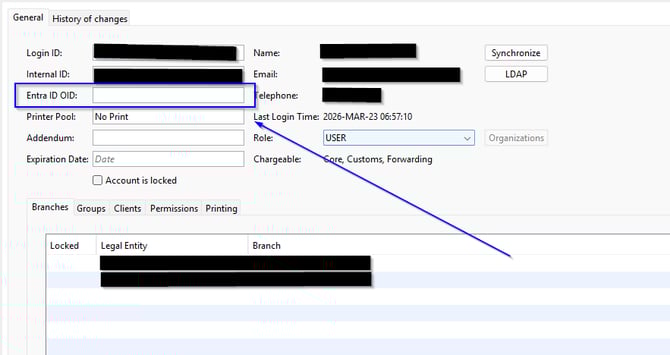
Select the user whose OID was copied, open the user settings, paste the OID into the “Entra ID OID” field, and save your changes. Now the new user should be able to click the launch app button and start Scope.